大叔剛入行時,還是 iPhone 4s 的時代,那時後手機上的硬體資源有限,記憶體還很珍貴,有這麼多 APP 要一起共享,所以在寫 APP 的時候,記憶體的使用就需要特別的注意,不管是要 alloc ( 記憶體配置 ) 變數或是 free ( 記憶體釋放 ) 都要小心,一不留意 APP 就會跟大叔閃退 say goodbye。經典的UIKit 框架就誕生在這樣的背景中,在 UIKit 中主力是使用 class ( 類別 ) 的型別,它是一種 reference type ,而來到了 iPhone 16 ( iOS 18 ) 的時代,有了 AI 的剛需,iPhone 記憶體 ( RAM ) 來到了傳聞中的 8G,現在的 SwiftUI,就由 class 改變成 struct ( 結構 ),struct 是一種 value type 的型別。那蘋果為何從 class 轉性成 struct?從指標指來指去的 refernce type 轉成,每次使都要 clone 或 create 的 value type ?全是為了兩個字:安全。至於 struct 怎麼來個安全法,這又是另一篇故事了😎

Classic Cell Configuration
實務上 APP 常使用到列表頁 (UITableView) 的 UI,如果要用 UIKit 來純寫 code 來實作的話,通常會先在 UIViewController 上 create UITableView,在這 table view 上註冊我們寫 code 客製化自訂的 cell ( 繼承 UITableViewCell ) 如
// register cells
tableView.register(NewsCell.self, forCellReuseIdentifier: NewsCell.identifier)
然後在 table view 的 data source 中,create cell ,並設定重複使用這 cell ,然後把資料 ( model ) 傳入 cell 後,回傳。
func tableView(_ tableView: UITableView, cellForRowAt indexPath: IndexPath) -> UITableViewCell {
    // classic cell for custom cell in programming
    let cell = tableView.dequeueReusableCell(withIdentifier: NewsCell.identifier, for: indexPath) as! NewsCell
    let a_news = news[indexPath.row]
    cell.set(news: a_news)

    return cell
}
而我們這客製化的 cell,data type 為 class ,所以它可以繼承 UITableViewCell 這蘋果先幫我們寫好的 cell。
import UIKit

class NewsCell: UITableViewCell {

    static let identifier = "NewsCell"

    var newsImageView = UIImageView()
    var newsTitleLabel = UILabel()
    var newsSourceLabel = UILabel()

    override init(style: UITableViewCell.CellStyle, reuseIdentifier: String?) {
        super.init(style: style, reuseIdentifier: reuseIdentifier)
        layoutViews()
    }

    required init?(coder: NSCoder) {
        fatalError("init(coder:) has not been implemented")
    }

    func set(news: News) {
        newsImageView.image = news.image
        newsTitleLabel.text = news.title
        newsSourceLabel.text = news.source
    }

	...
}完整程式:ModernCellConfigurationExe/ClassicCellConfig/NewsCell.swift
由以上的範例,看到傳入 cell 的資料,直接設定在 cell 的 UI 元件 ( UIImageView & UILabel ) 上,這套經典的寫法大叔把它稱作「Classic Cell Configuration 」,十多年來這 Table View Cell 的經典設計款,蘋果大概是很難將它下架吧!但時代在變 寫 APP 的方法也在變,在 WWDC 2020 時,我們蘋果教主提出了一套「Modern Cell Configuration」的新設計,作為 Table View Cell 的新時代之作,想必蘋果圖的心思是想讓 UIKit 繼續存活個好幾年吧,但教主心思豈止於此,待大叔娓娓道來😎
Modern cell configuration - WWDC20 - Videos - Apple Developer
Modern Cell Configuration
STEP1
先 create 另一個新的 cell 如
import UIKit

class NewsCell_MCC: UITableViewCell {
    static let identifier = "NewsCell_MCC"
}
STEP2
下一步 create 一新的 struct,如取名為 NewsContentConfiguration,其中這 struct 需遵從 UIContentConfiguration 這 protocol ( 協定 ),Swift 規定 struct 無法繼承只能遵從協定 ( protocol ) 如
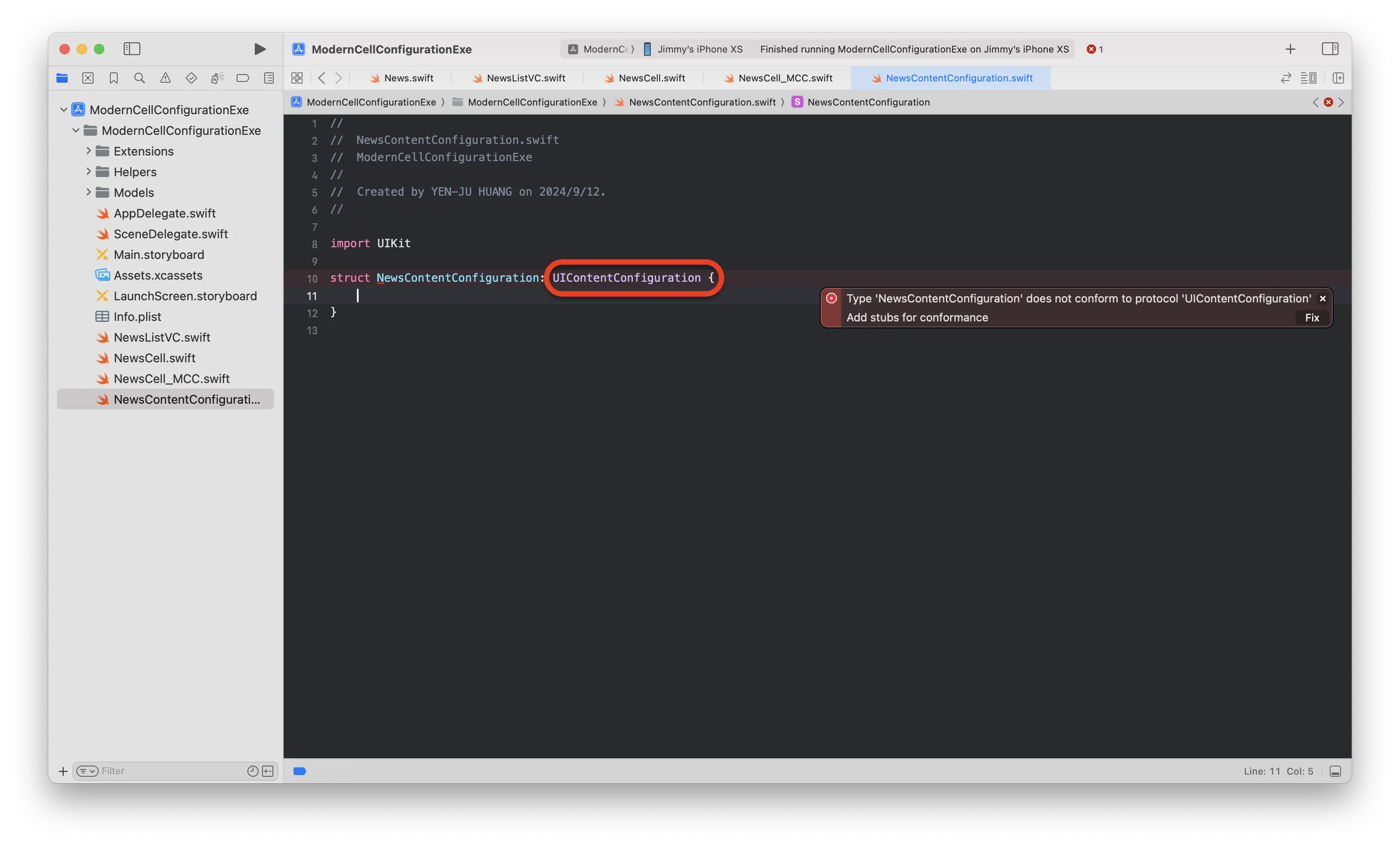
UIContentConfiguration 協定,必需要實作兩個 Instance Methods
import UIKit

struct NewsContentConfiguration: UIContentConfiguration {
    func makeContentView() -> any UIView & UIContentView {
    }

    // update different style based on cell's state
    func updated(for state: any UIConfigurationState) -> NewsContentConfiguration {
    }
}
makeConentView()
可以產生 table view cell 的畫面 ( content view ),用在 Content Configuration 中
updated(for:)
在這 method 中可以先預設好 cell 的各個狀態 ( state ) 要顯示的 UI 或資料 ,之後再依傳入狀態 (UIConfigurationState),回傳 Content Configuration
STEP3
再來產生一 ContentView,即NewsContentConfiguration 中 makeContentView() 需回傳的。如
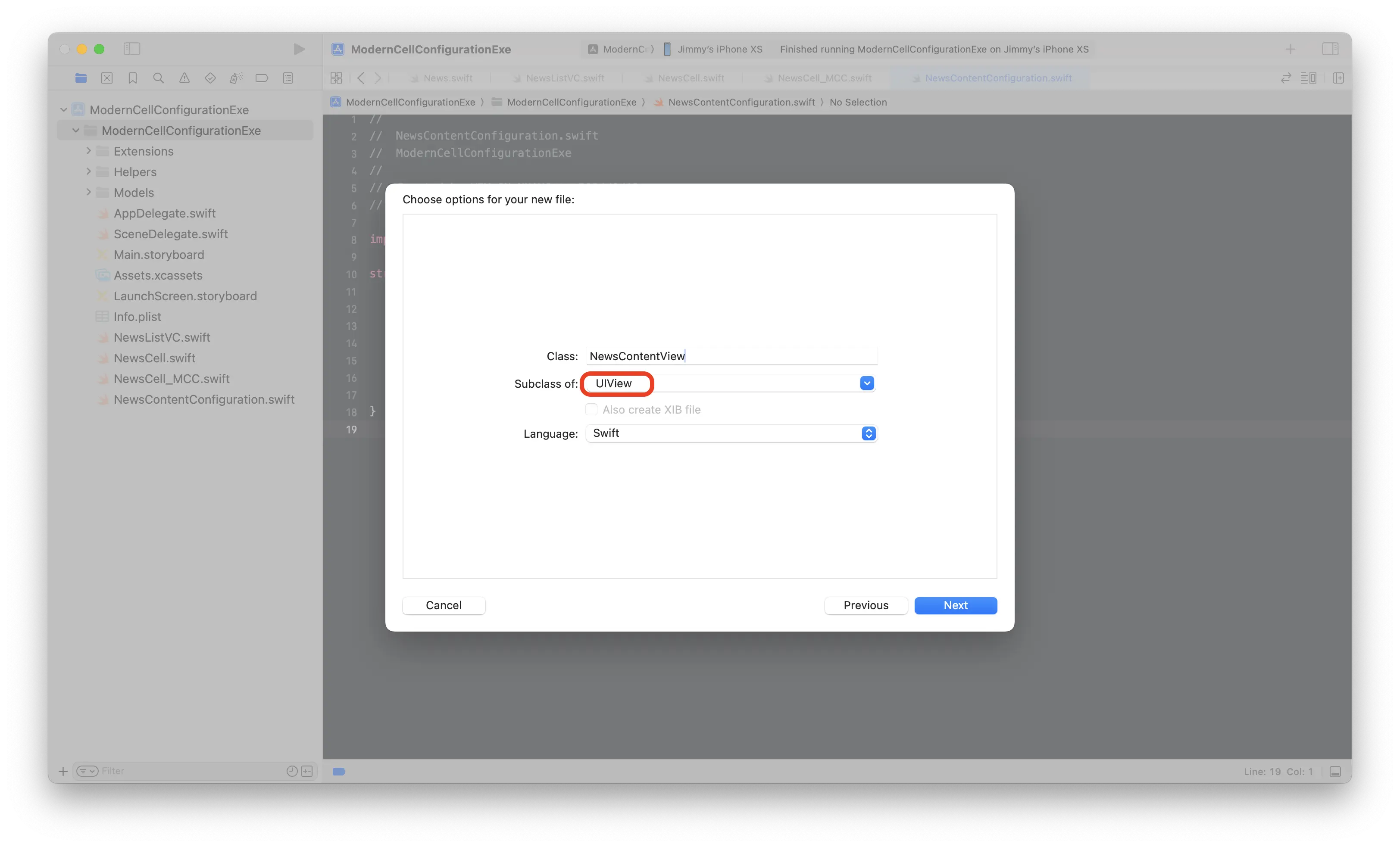
這 NewsContentView 為 class,除了繼承 了 UIView 外 ,還需要遵從 UIContentView 協定
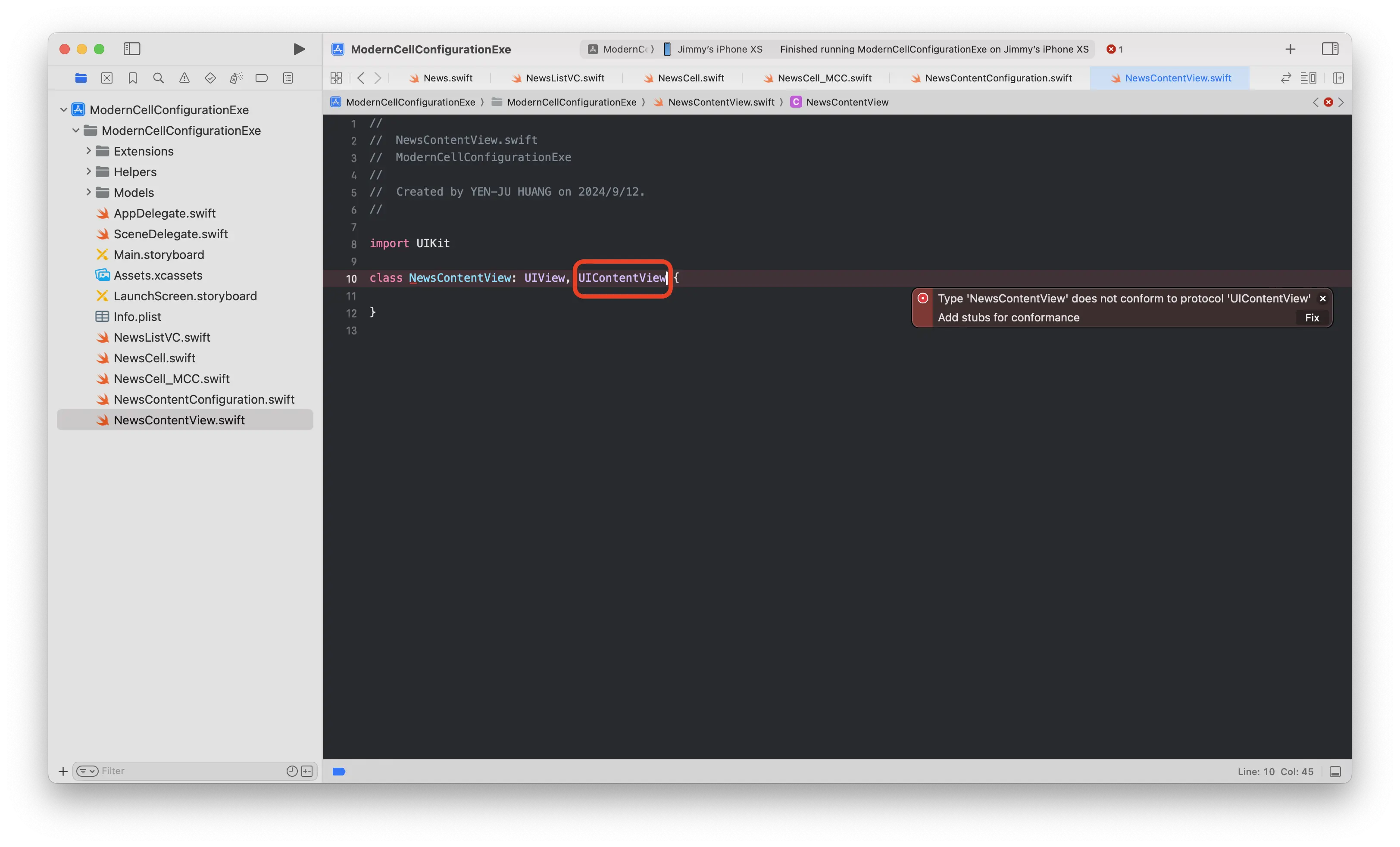
UIContentView,需要宣告參數 var configuration: any UIContentConfiguration,目的是用來傳入 STEP2 中的 configuration
import UIKit

class NewsContentView: UIView, UIContentView {
    var configuration: any UIContentConfiguration

    init(configuration: any UIContentConfiguration) {
        self.configuration = configuration
        super.init(frame: .zero)
    }

    required init?(coder: NSCoder) {
        fatalError("init(coder:) has not been implemented")
    }
}
STEP4
參考範例程式把 NewsContentConfiguration 與 NewsContentView 剩下的部分補上
Explanation
NewsContentConfiguration
struct NewsContentConfiguration: UIContentConfiguration {
    // data
    let news: News

    func makeContentView() -> any UIView & UIContentView {
        return NewsContentView(configuration: self)
    }

    // update different style based on cell's state
    func updated(for state: any UIConfigurationState) -> NewsContentConfiguration {
        return self
    }
}
如上,先宣告要顯示的資料 ( News Model ) ,而 makeContentView 中則回傳 SETP3 中的 content view ,並同時也把自己 self ( NewsContentConfiguration ),傳入 content view 裡,至於 update(for:) 暫時先回傳自己 ( self )。
NewsContentView
在 Classic Cell Configuration 中,我們會直接在 table view cell 中設定 UI ( UIImageView & UILabel ) 的 layout 和其值,如
func set(news: News) {
    newsImageView.image = news.image
    newsTitleLabel.text = news.title
    newsSourceLabel.text = news.source
}
但在 Modern Cell Configuration 中,我們可以把原本 cell 中的設定,盡數搬到 content view 中,如
private func layoutViews() {
    addSubviews()
    configureSubViews()
    setConstraints()
}
而設定 UI 資料,則需透過 content configuration 參數傳入,如
private func setNews() {
    guard let config = configuration as? NewsContentConfiguration else {
        return
    }

    newsImageView.image = config.news.image
    newsTitleLabel.text = config.news.title
    newsSourceLabel.text = config.news.source
}
這傳入的 content configuration 是不是很像 MVVM 開發中的 View Model,這個 configuration 是 struct,對 iOS 來說是 struct 非常輕量,殺掉後再次產生,也不會有什麼負擔, struct 是蘋果的新歡,使用 configuration 可以把 UI 與 data 區分開來,同樣的 configuration 就可使用在不同的 content view 上。
NewsCell_MCC
經過 Modern Cell Configuration 的巧手協助, table view cell 可以簡化成:
import UIKit

class NewsCell_MCC: UITableViewCell {
    static let identifier = "NewsCell_MCC"

    func set(news: News) {
        contentConfiguration = NewsContentConfiguration(news: news)
    }
}
每次呼叫 cell 的 set(news:) 時,可以產生新的 NewsContentConfiguration,並把它設定為 cell 的 contentConfiguration ,它是 iOS 14 之後蘋果為 table view cell 新加入的屬性,它的資料型態就是 UIContentConfiguration
@available(iOS 14.0, tvOS 14.0, *)
extension UITableViewCell {

    @available(iOS 14.0, tvOS 14.0, *)
    @MainActor @preconcurrency public var contentConfiguration: (any UIContentConfiguration)?

    @available(iOS 14.0, tvOS 14.0, *)
    @MainActor @preconcurrency public func defaultContentConfiguration() -> UIListContentConfiguration
}
這時候可以執行程式了,跑起來結果應該和 classic cell configuration 相同。
Update Configuration State
原本用傳統的 classic cell configuration 的方式,要達成手指選到哪個 cell ,這 cell 就要能變換顏色,可能需要去宣告 table view delegate 的方法,去攔截接收手指 touch 到 cell 的 event 來變換顏色,整個感覺相當的麻煩與囉唆。
但如果用 modern cell configuration 來實作的話,可能會變得簡單一點。神奇的地方就發生在 configuration 中的 update(for:) 這 method,修改 content configuration 如
struct NewsContentConfiguration_US: UIContentConfiguration {
    // data
    let news: News
    // ui style
    var textColor: UIColor?

    func makeContentView() -> any UIView & UIContentView {
        return NewsContentView_US(configuration: self)
    }

    func updated(for state: any UIConfigurationState) -> NewsContentConfiguration_US {
        guard let state = state as? UICellConfigurationState else {
            return self
        }

        var updatedConfig = self
        // when cell is selected, text color would turn to white
        if state.isSelected {
            updatedConfig.textColor = .systemRed
        }else {
            updatedConfig.textColor = .black
        }

        return updatedConfig
    }
}
在 updated(for:) 中依傳入的 UIConfigurationState 來設定 cell 標題文字的顏色。先宣告 var textColor: UIColor? 成員變數,當 cell 被選 ( isSelected ) 到時 textColor 為紅色,而沒被選到則為黑色,而回傳值仍然是 return 自己 ( self ),只不過這個自己會根據 cell 不同的狀態 ( state ) 來改變 textColor。
而在 table view cell,則新增這幾行
private var a_news = News(image: nil, title: nil, source: nil)

// when cell is selected, this update would be called
override func updateConfiguration(using state: UICellConfigurationState) {
	super.updateConfiguration(using: state)
    // generate configuration for cell content based on cell's state
    let contentConfig = NewsContentConfiguration_US(news: a_news).updated(for: state)
    contentConfiguration = contentConfig
}

func set(news: News) {
     contentConfiguration = NewsContentConfiguration_US(news: news)
     a_news = news
}
新增 private var a_news 來儲存 set(news:) 時傳入的 news。
另外新增覆寫 ( override ) **updateConfiguration(using:)** 這 function,當每次 tableview cell 狀態 ( UICellConfigurationState ) 有改變時,系統會自動呼叫此 function,因此可以在 update 裡改變我們設計的 content configuration( 例如 NewsContentConfiguration_US ) ,並把 cell 狀態傳入。當回傳時就可以直接再次設定到 cell 的 contentConfiguration,因為 configuration 是 struct,所以 iOS 不怕我們一直產生一直設定。
最後 Content View 需修改如下,用以改變文字顏色
var configuration: any UIContentConfiguration {
    didSet {
        setStyle()
    }
}

private func setStyle() {
	guard let config = configuration as? NewsContentConfiguration_US else {
		return
    }

    newsTitleLabel.textColor = config.textColor
    newsSourceLabel.textColor = config.textColor
}
在原本的 configuration 裡新增 didSet 的呼叫,當傳入的 configuration 一有變動之後,就會去呼叫 didSet 裡的 setStyle ,用來設定 UILabel 的 textColor。
行文到這,不知道有沒有人有疑問?用傳統寫 code 的方式來產生 table view cell 就已經夠囉唆了,為何在 iOS 14 蘋果要引進這看似囉唆複雜的 Modern Cell Configuration ,既要新增 content configuration 又要新增 content view?答案揭曉:原來這一切都是為了 SwiftUI 在鋪路啊!table view cell 有了 content configuration 的設計,就可以透過 UIHostingConfiguration(content:) 的引薦,直接引入 SwiftUI 所撰寫的 view,蘋果教主的這一點小心思,豈不妙哉😎
參考完整程式專案 https://github.com/theLittleApps/ModernCellConfigurationExample
References
=> Modern Cell Configuration in iOS 14 (Swift 5, Xcode 12, 2020) - iOS Development
=> 從 iOS 15 開始,使用內建 cell 樣式建議搭配 UIListContentConfiguration
=> iOS 14 — Modern Cell Configuration for Beginners (Programmatically)
=> The Developer’s Guide to Cell Content Configuration in iOS 14
=> how to use iOS 14 cell content configurations in general?
=> Rendering SwiftUI views within UITableView or UICollectionView cells on iOS 16
=> UITableViewCell in iOS 14
=> How to implement a text field cell with custom content configuration in iOS 14?
=> UICollectionView List with Custom Cell and Custom Configuration
贊助我們